
.jpg)





Introducing Keeper's independent contractor expenses spreadsheet
This spreadsheet helps you track everything you buy for work and groups them according to their appropriate tax category. You can use it to lower your self-employed income and, ultimately, save on your taxes.
This free resource is brought to you by Keeper, an app that helps freelancers and small business owners like you stay organized and save money. It automatically scans your bank and credit card accounts to pick out what you can write off. At the end of the year, it takes care of filing for you. Simply put, it's "Quickbooks Self-Employed, but better."
{upsell_block}
If you want to learn more about their services, you can read Keeper's article showing why they're the best app to track receipts for taxes. But even if you don't want to try out Keeper's services, they provide this tool for free.
It comes with no strings attached: You don't even need to have Microsoft Excel.
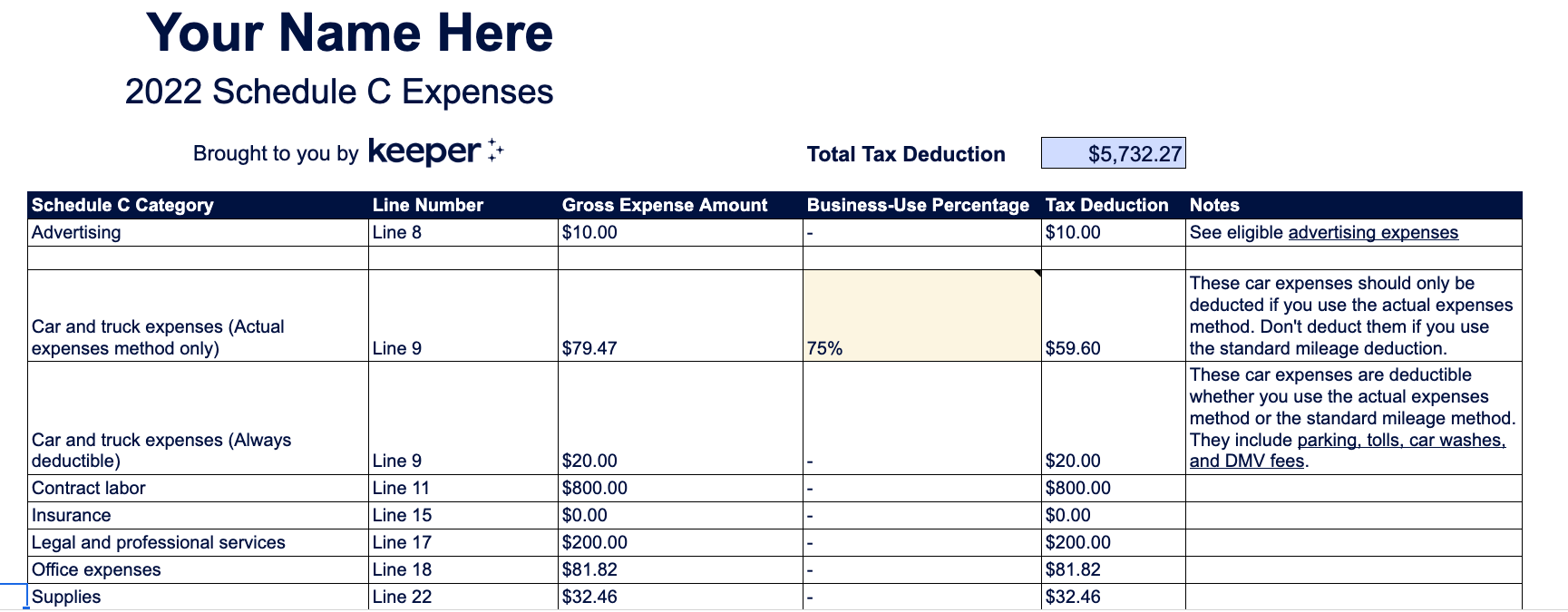
Here's how it looks:
I know, it’s not "The Mona Lisa."
But I would argue it’s actually way better. When was the last time that Da Vinci painting saved your wallet and your peace of mind, all from the comfort of your own home?
That’s what I thought.
And bonus, you don’t have to elbow past sweaty tourists to get the most out of this — there’s plenty of spreadsheets to go around.
How to use this 1099 spreadsheet
This free 1099 template does two things that are very important for busy freelancers and small business owners.
- It calculates how much you can deduct from your taxable income, and
- It takes everything you buy for work and translates into IRS-speak
It does this using three different tabs, which are color-coded green, blue, and purple.

Let's go through them one by one.
{write_off_block}
1. Schedule C Expense Categories
This first tab is your bread and butter. All you need to do here is customize it with your name, and fill in your business-use percentages. (Those boxes are in yellow — hover over the cell for notes!)
Everything else here will show up automatically, based on what you enter in the other two tabs. Just a little bit of tax magic for you. ✨
This green "Schedule C Expense Categories" tab groups your work-related purchases into accountant-friendly categories — the same categories you'll find on a Schedule C.
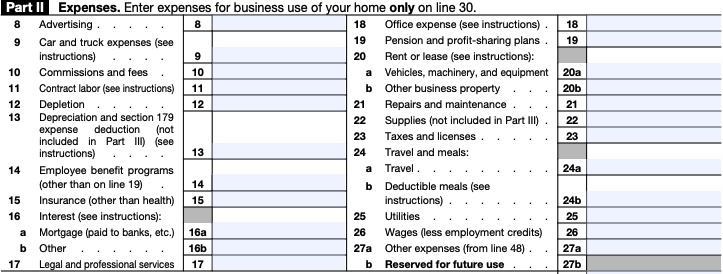
Let's go through the sheet, one part at a time.
Total Tax Deduction
This green box at the top shows the total amount you can deduct from your taxable income.

It's calculated automatically based on everything you fill out in the template. So add your write-offs, and watch that number go up!
Column B: Schedule C Category
If you've ever been through the process of filing self-employment taxes by hand, everything in this column will look pretty familiar from your Schedule C.
If you'd like a more detailed rundown, I recommend checking out Keeper's guide to filling out your Schedule C. But in a nutshell, your Schedule C is the form you use to tell the IRS what business expenses you're writing off every year.
Schedule C forces you to split up your write-offs into different, somewhat arbitrary categories.
Do you pay for advertising? You get a deduction. Travel to meet a client? You get a deduction. Visit an office supply store? Have a meal to talk about your business? All of those qualify as tax deductions.
Column C: Line Number
This column shows you how to match up expense categories on this sheet with the lines on a Schedule C. Advertising expenses, for example, are on line 8 of the form.
The column is a great way to double-check your return and avoid the IRS’s attention — something no freelancer wants.
Especially if you're filing online, it's easy to rush through things out of hunger for that tasty refund. But with taxes, it always pays to give things a once-over before you submit.
This column provides a great way to do that. With the Schedule C line number right there, you can be confident that, if the IRS ever comes knocking, you can provide them with required information that matches up exactly with the form.
Column D: Gross Expense Amount
Here, you'll see how much you spent on each Schedule C category over the course of the tax year.
For example, say you spent $1,200 on your personal assistant, your marketing freelancer, and your web designer. You'll automatically see that number in row 10 of this column, for contract labor.
Great news: The sheet calculates this automatically by adding up the expenses you enter on the other two tabs of the template. You won't have to enter anything by hand.
Column E: Business-Use Percentage
Here's the only part of this tab where you might have to enter some numbers.
In most cases, the business-use percentage column is blank, meaning the default percentage is 100%. That’s because your business purchases are generally used exclusively for work. Your advertising expenses, for instance, aren't going to help you out in your personal life.
Still, there are some categories with special rules:
- Car and truck expenses (Actual expenses only): There are two ways to deduct car expenses, the standard mileage rate and the actual expense method. If you opt for actual expenses, you'll have to enter the percentage of time you drive your car for business purposes. Put this in row 8 of Column E, which is highlighted in yellow. (Side note: If you use the standard mileage method instead, check out our free template for mileage logs!)
- Deductible meals: Business meals are 50% deductible, unless you eat them on a business trip.
- Business use of your home: Have a home office? You'll have to enter the percentage of your total square footage that makes up your workstation. This is in row 19 of Column E, which is also highlighted in yellow.
- Other expenses: This cell just says "Mixed," because it really depends on what you're writing off. But don't worry. Your gross expense amount and your tax deduction for these miscellaneous categories will calculate automatically, based on what you enter in the "Other Expense - Grouped" tab.
Column F: Tax Deduction
This column is going to be your meat and potatoes. It shows how much you can shave off your taxable income for each Schedule C category.
If you want to lower your tax liability as much as you possibly can, you’ll want to record every deduction you possibly can. It's fun to watch the numbers in this column rise!
Column G: Notes
Here you'll find a couple of hints and best practices to follow, as well as links to useful resources. Read them if you get stuck!
{email_capture}
2. All Business Expenses
The previous tab did most of the work for you, thanks to the magic of spreadsheets. To help feed it, you'll want to enter the details of all your work-related purchases in this blue middle tab.
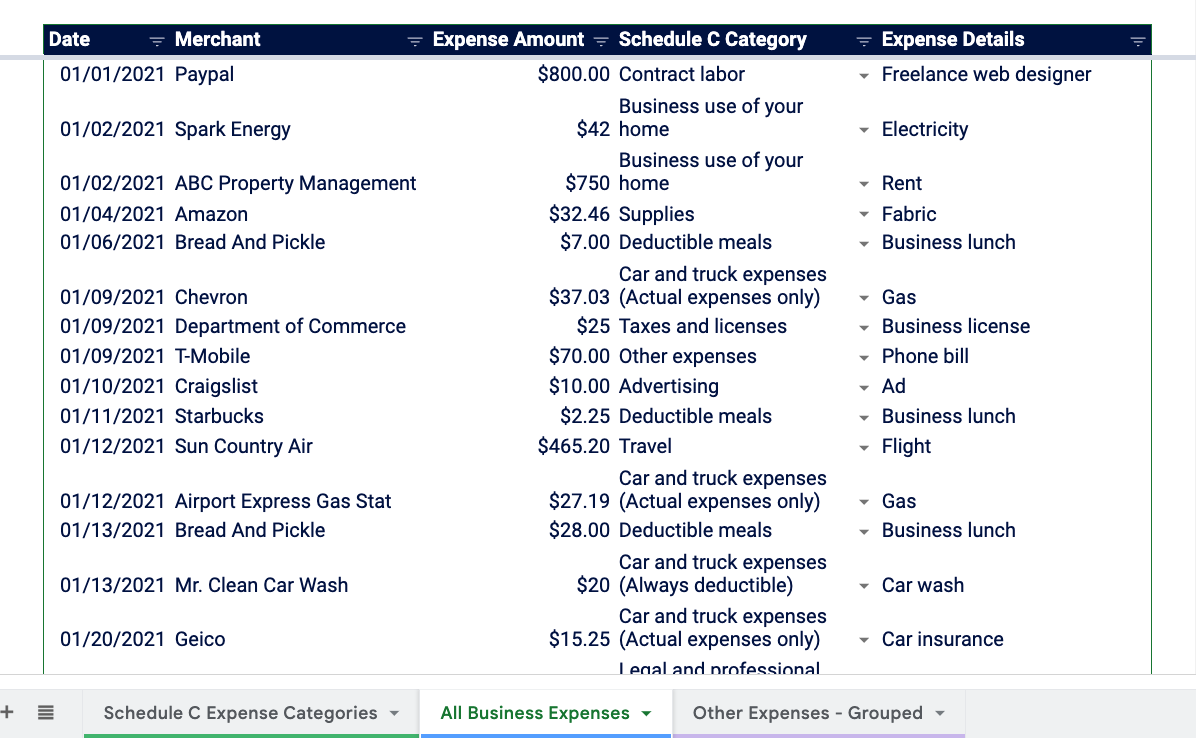
All you need to enter is:
- The date of your purchase in Column B
- The merchant you bought it from in Column C
- The expense amount in Column E
- The Schedule C category it belongs to, using a dropdown
- Any other details you'd like, to jog your memory when it's time to file
That's all you need to keep great records for your write-offs.
3. Other Expenses - Grouped
On this third tab, which is color-coded purple, you can list the expenses that don't fall into any of the other Schedule C categories.
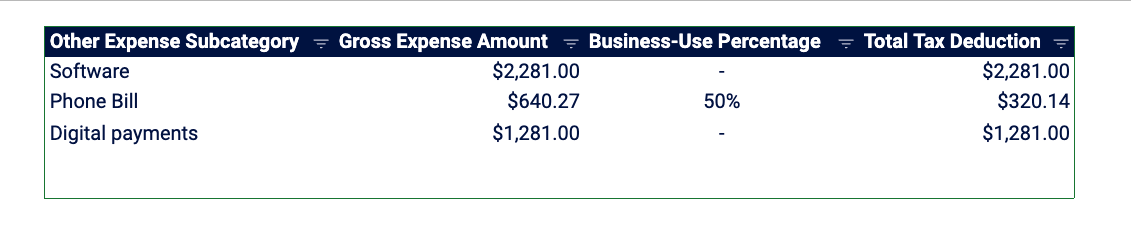
For your own records, it’s a good idea to enter these in the previous, “All Business Expenses” tab. But you should separately enter them in this tab as well. This ensures the template will calculate your tax deductions correctly.
For some of these "Other Expenses" — like your cell phone bill — you'll have to enter a business-use percentage in Column D. The sheet will take this and automatically calculate your total tax deduction in Column E. (Leave the business-use percentage column blank for a purchase, and you'll get your gross expense amount counted as your total tax deduction.)
✓ Making sure your deduction amount is correct
To make sure the total tax deduction that pops up is right, be sure to drag the formula for business-use percentage all the way to the bottom of Column E, where your last entered expense is.
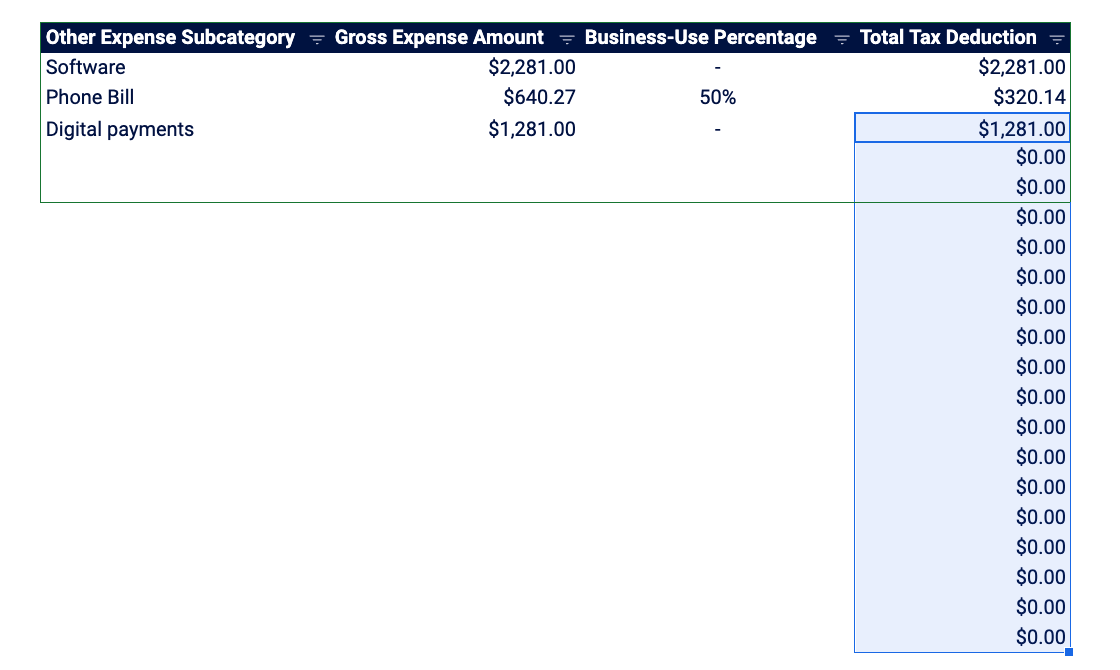
If this seems like too much of a chore, you can always do things the easy way: have Keeper do the work for you. They'll make sure you don't miss a deduction, so you can get your tax bill as low as possible. (To see how much you'll owe without these write-offs, check out their self-employment tax calculator.)
What to do after filling out your 1099 template
Once you have everything filled out, you're ready to file your taxes!
You can use this export sheet to fill out your own Schedule C with any e-file provider you choose. If you use an accountant, you can also hand it over to them — I’m sure they'll be happy they aren’t getting a shoebox full of paper receipts this year.
To make things even easier on you, consider filing with Keeper. They'll take care of filling your Schedule C and wrangling all your forms.
{filing_upsell_block}
Whether you're using this free template or taking advantage of the Keeper app, it's the perfect time to get organized. You might never love doing your taxes, but you can make it fast, cheap, and headache-free.
Over 1M Americans trust Keeper for their complex taxes
Keeper is the #1 tax app for freelancers and businesses-of-one. Capture every deduction, credit, and tax-saving opportunity with expert review on every return.



Sign up for Tax University
Get the tax info they should have taught us in school
Track and claim every eligible deduction with Keeper
Keeper is the top-rated all-in-one business expense tracker, tax filing service, and personal accountant.



What tax write-offs can I claim?

What tax write-offs can I claim?
Discover effortless tax savings, with Keeper Tax

File complex taxes confidently



Recommended Videos
More Articles to Read


